Photos and tagging group photos
Photos are what make Family Trees feel like an album. Add them to anyone’s page, choose the portrait that represents them, and tag everyone in a group photo so it shows on each of their pages.
Steps
Add photos to a person
Open a person’s page and tap the round camera button on their portrait, or + on the Photos card. Choose up to ten photos from your library at a time. Family Trees keeps its own copy, so the originals in Photos are never changed.
On iPad or Mac you can also drag photos in from Photos or Files and drop them anywhere on the person’s page, up to ten at a time.
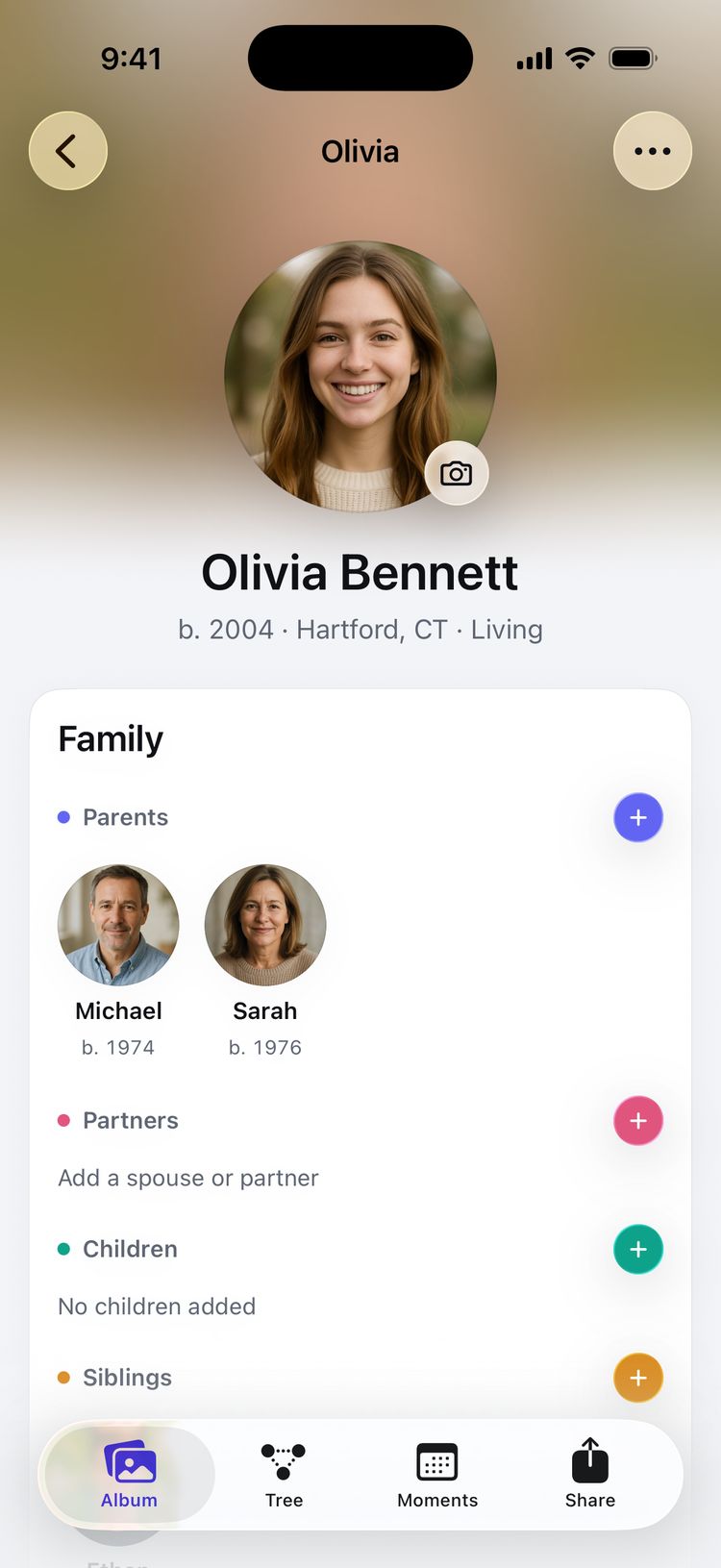
The camera button on a person’s portrait adds photos. Choose their portrait
The first photo becomes the portrait. To use another, touch and hold it in the Photos card and choose Use as portrait. Faces are found on your device, so the circle is framed around the person.
To move the circle yourself, open the portrait, tap ••• and choose Adjust portrait crop.
Tag a group photo
Open a photo with several people in it. Family Trees finds the faces on your device; tap a face and pick who it is from the list that opens. The photo then appears on the page of everyone you tag.
For a face it missed, tap Tag someone and then tap where they are, or touch and hold that spot.
Add a caption and date
In the photo viewer, tap ••• and choose Edit caption to add a few words and the date it was Taken.
Tips
- Only the photos you pick are shared with the app. The system photo picker doesn’t let Family Trees see the rest of your library.
- To remove a photo from Family Trees, touch and hold it and choose Delete photo. The original stays in your photo library. On someone else’s photo that they’re tagged in, the menu offers to untag them instead, such as Remove Olivia from this photo.
- Faces are found with Apple’s on-device tools. Nothing is uploaded to be recognized, and Family Trees doesn’t guess who anyone is: you choose.
- Photos aren’t part of GEDCOM files, so they are kept only in Family Trees and its backups.
Still stuck? Email support@familytreesapp.com and a person will reply.