Adding relatives with the quick-add wheel
The quickest way to grow your tree is the quick-add wheel: four colored buttons that spring out around anyone you tap on the Tree tab.
Steps
Tap someone on the Tree
On the Tree tab, tap a portrait to select it. Four round buttons appear around it: Parent above, Partner to the right, Child below and Sibling to the left.
Each relation has its own color (indigo, rose, teal and amber), and the same colors mark relatives on every person’s page.
Choose who to add
Tap one of the four buttons. A short form opens: Add Parent, Add Partner, Add Child or Add Sibling. Type a First name and Last name, and if you like a Gender and Birth year.
Say how they’re related
For a parent, choose the Kind: Biological, Adoptive, Step or Foster. For a partner, choose Married, Partners, Divorced or Separated. For a child, pick the Other parent from the person’s partners, or Not listed.
Tap Add
The new person appears on the tree, already selected, so you can keep going: tap Parent again to add their parents. Photos, dates and places can be added from their page whenever you like.
Or add from a person’s page
Every page has a Family card with a + beside Parents, Partners, Children and Siblings. You can also tap ••• and choose Add relative, which asks Who is this to them.
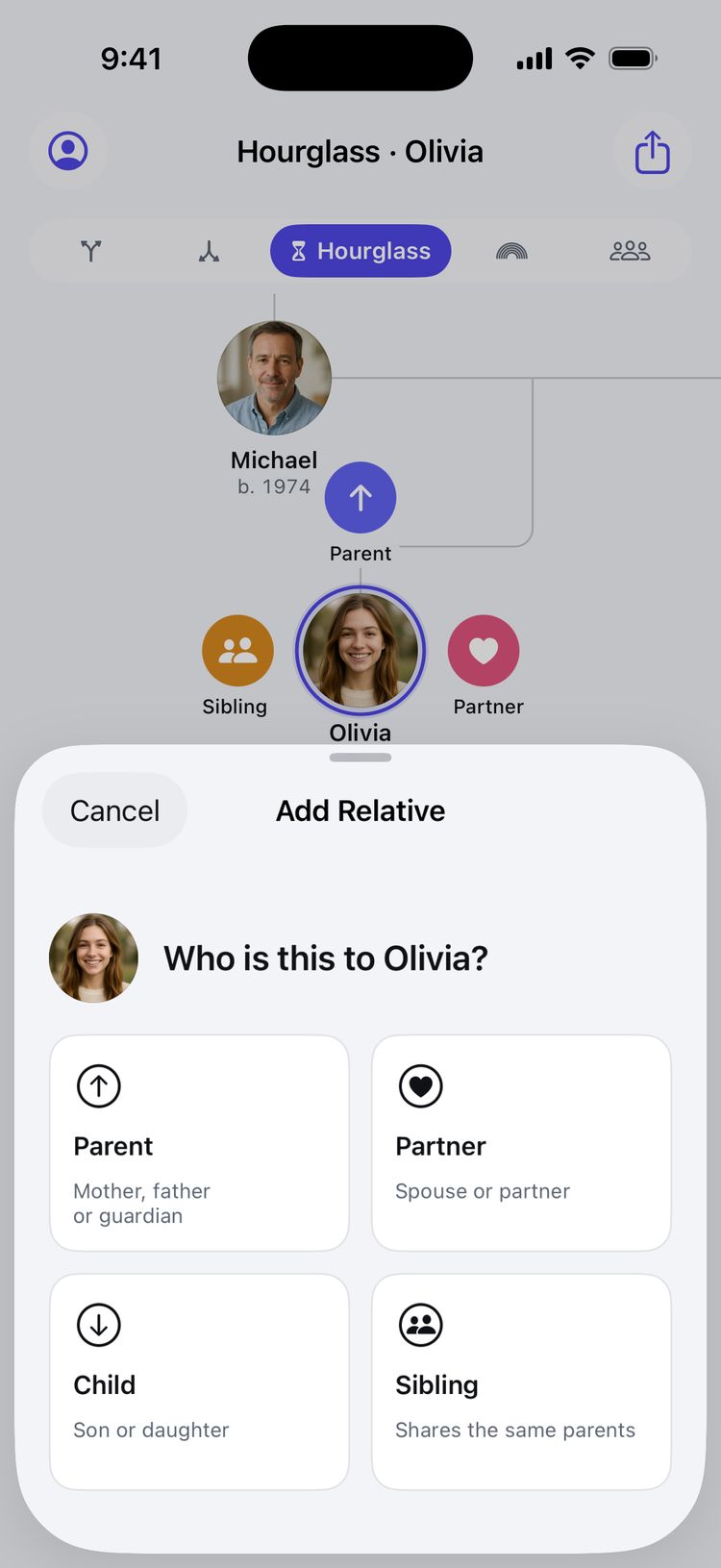
Add relative: Parent, Partner, Child or Sibling.
Tips
- The buttons hide while you pan or zoom, and when you zoom out far enough that names disappear. Zoom in a little and tap again.
- A sibling shares the parents you’ve already added, so add at least one parent first.
- Someone added with Add person under + in the Album starts out linked to no one. Their page offers Connect to the family, to choose who they are to someone already in the tree. See Linking people by dragging.
- If someone already has two parents, Parent opens the relation picker instead of a third parent.
- On iPad or Mac with a keyboard, press Space to show or hide the quick-add buttons for the selected person.
- With Reduce Motion on, the buttons fade in instead of springing out.
Still stuck? Email support@familytreesapp.com and a person will reply.