Linking people by dragging
Sometimes the person you need is already in your tree. Instead of adding them twice, drag their portrait onto a relative and say how they’re related, or connect them to the family from their page.
Steps
Touch and hold a portrait
On the Tree tab, in any view but the Fan, touch and hold a portrait for a moment until it lifts off the canvas.
Drag it onto someone
Carry it over the person you want to link to. Their ring takes the color of the likeliest link: drop on someone a generation below and you’ll be offered their parent; a generation above, their child; the same generation, their partner or sibling. Near the edge of the screen the tree scrolls for you.
Let go and choose
A card asks how they’re related, for example Make Kevin… Priya’s parent, Priya’s child, Priya’s partner or Priya’s sibling. Choices that can’t be true are dimmed with the reason, such as Kevin already has two parents.
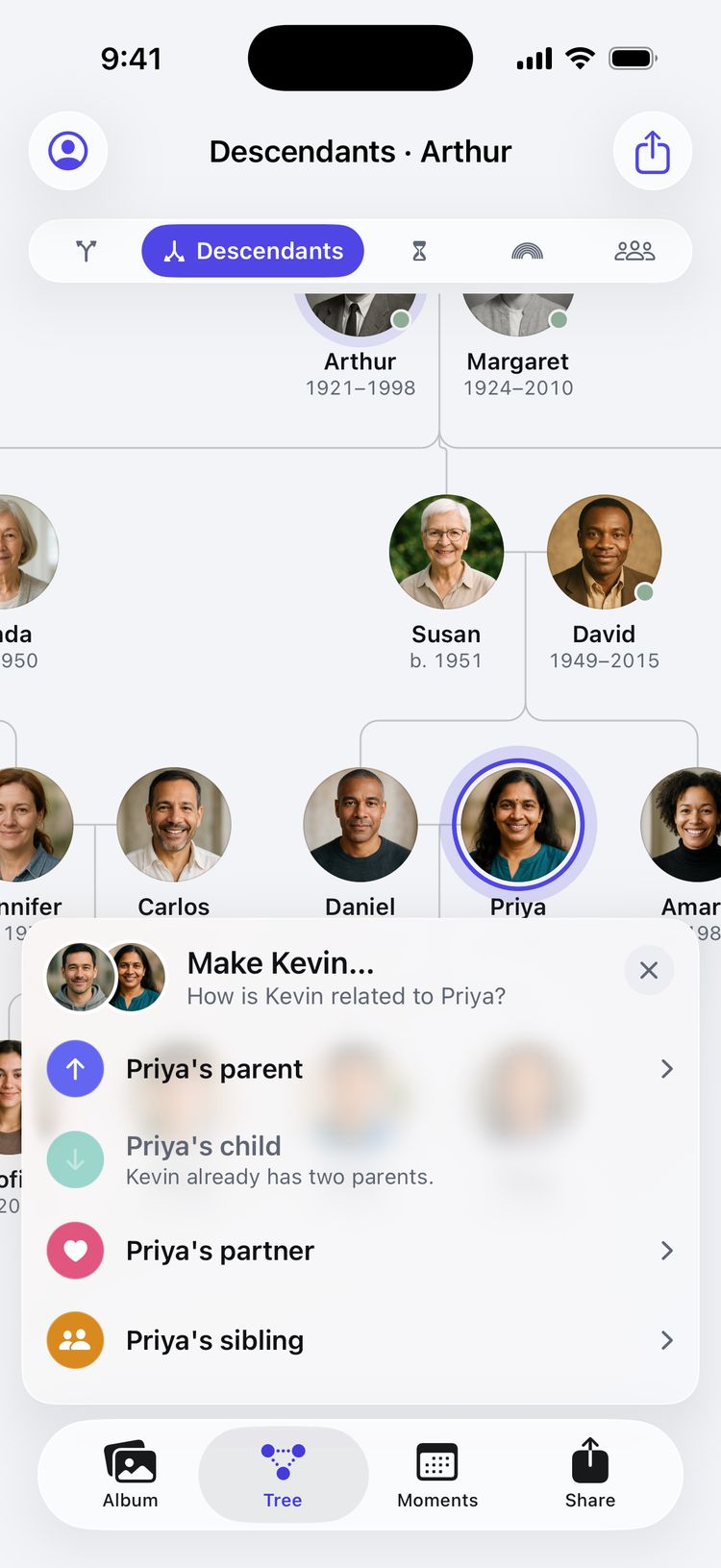
The link card after dropping Kevin on Priya. Check the result
A note at the bottom confirms the link, for example Kevin is now Priya’s parent, with an Undo button in case it wasn’t what you meant.
Connect to the family
When the two people aren’t on screen together, link them from a person’s page instead.
Open their page
Someone added on their own, with Add person under + in the Album, is linked to no one yet. Their page shows Not linked to anyone yet with a Connect to the family button. For anyone else, tap ••• on their page and choose Connect to the family…
Choose a relative
Pick someone from Suggested or Everyone, or search for a name.
Say how they’re related
Choose one of four, for example Priya’s parent, Priya’s child, Priya’s partner or Priya’s brother or sister. For a parent or a child, pick the Kind of parent: Biological, Adoptive, Step or Foster. For a partner, pick the Relationship: Married, Partners, Divorced or Separated. A choice that can’t be true says why.
Tap Connect
The page says what the link will do, such as Kevin is now Priya’s parent. Tap Connect, and a note at the bottom confirms it, with an Undo button.
Tips
- To cancel, drop the portrait on empty space and it goes back, or close the card with its × button or Esc.
- Dragging works in every view but the Fan, Everyone included.
- A parent linked by dragging is recorded as Biological, and a couple as Partners. To change a couple to Married and give them a date, open the relationship from either person’s page. Connect to the family lets you choose the kind as you link.
- To drag, both people need to be on screen in the same view. Choose a focus person related to both, or use the Everyone view to see the whole family (see The Everyone view and other tree views), or use Connect to the family.
Still stuck? Email support@familytreesapp.com and a person will reply.