The Everyone view and other tree views
The Tree tab can draw your family five ways. Four are built around one person you choose; the new Everyone view shows the whole family at once.
Steps
Pick a view
Use the switcher at the top of the Tree tab:
- Ancestors: everyone a person comes from.
- Descendants: everyone who comes from them.
- Hourglass: both at once.
- Fan: ancestors in a half circle.
- Everyone: the whole family on one canvas.
Choose who it centers on
Tap the person button at the top left and choose someone from the Focus on list. You can also double-tap anyone on the tree, or tap them and choose Refocus on the card at the bottom.
Zoom and move
Pinch to zoom and drag to move. As you zoom out, names go first and then portraits become dots, so even a very large family stays smooth. The button at the bottom right fits the whole tree, or zooms back to the focus person.
See everyone at once
Choose Everyone to lay out the whole family, generation by generation. On iPhone, turn it sideways for more room: the tree fills the screen in landscape.
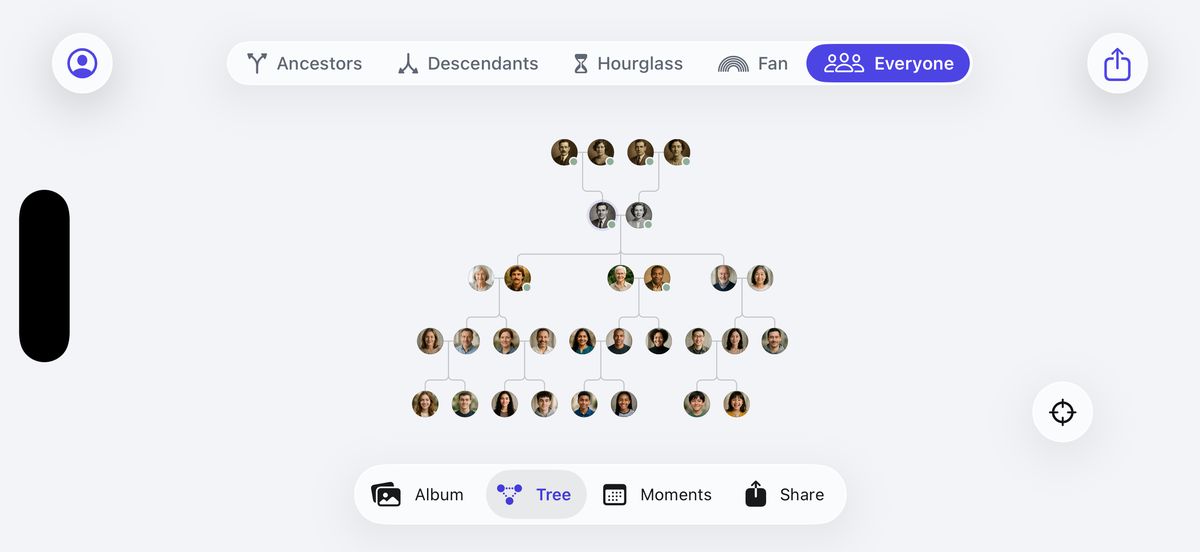
The Everyone view in landscape. Explore the fan
The Fan shows up to five generations of ancestors, the father’s side on the left and the mother’s on the right. Empty spaces have a + to add a missing parent.
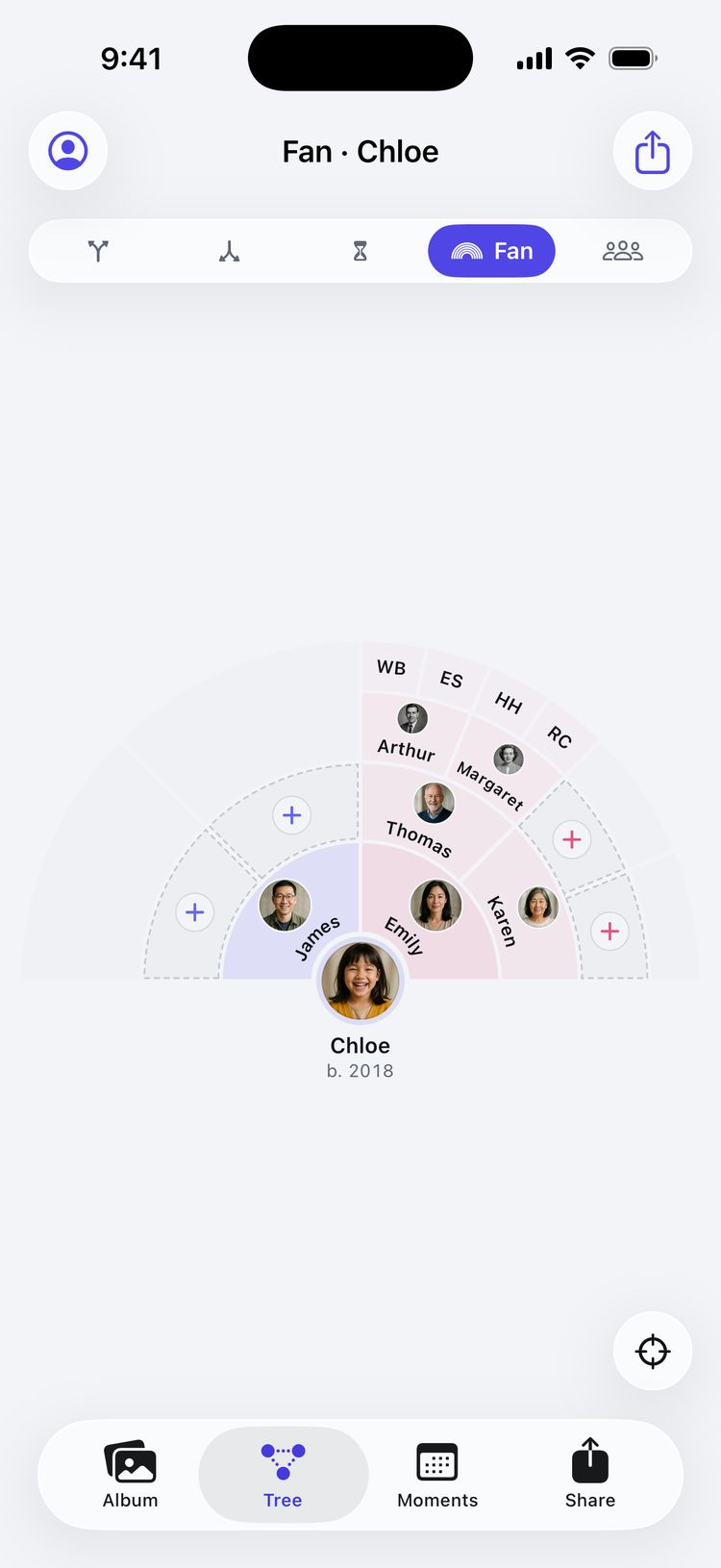
A fan chart with room for missing ancestors.
Tips
- Tap anyone to see how they’re related to the focus person, such as Olivia is Michael’s daughter.
- To see someone’s brothers and sisters, focus on one of their parents and choose Descendants.
- With a keyboard, ⌥⌘1 to ⌥⌘5 switch between Ancestors, Descendants, Hourglass, Fan and Everyone, and the arrow keys move through the tree. See Undo and keyboard shortcuts.
- Want it on paper? See Printing a poster.
Still stuck? Email support@familytreesapp.com and a person will reply.